
 Last Update: October 7, 2026

Overview
All settings are under Addons > Phox WHMCS Templates > Extensions > Support Hours > Manage.
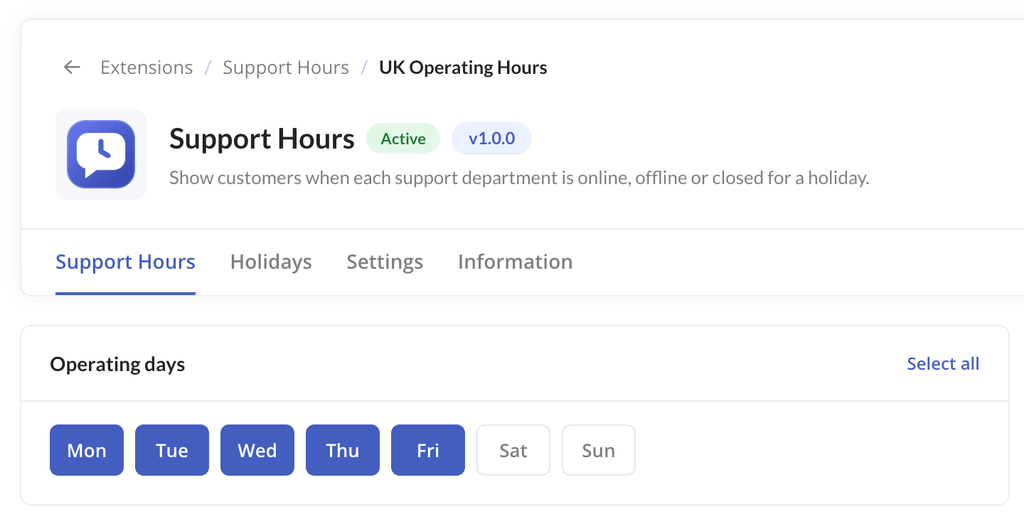
Operating Days
Choose the weekdays each department is on duty. Days you leave unselected show the department as closed.
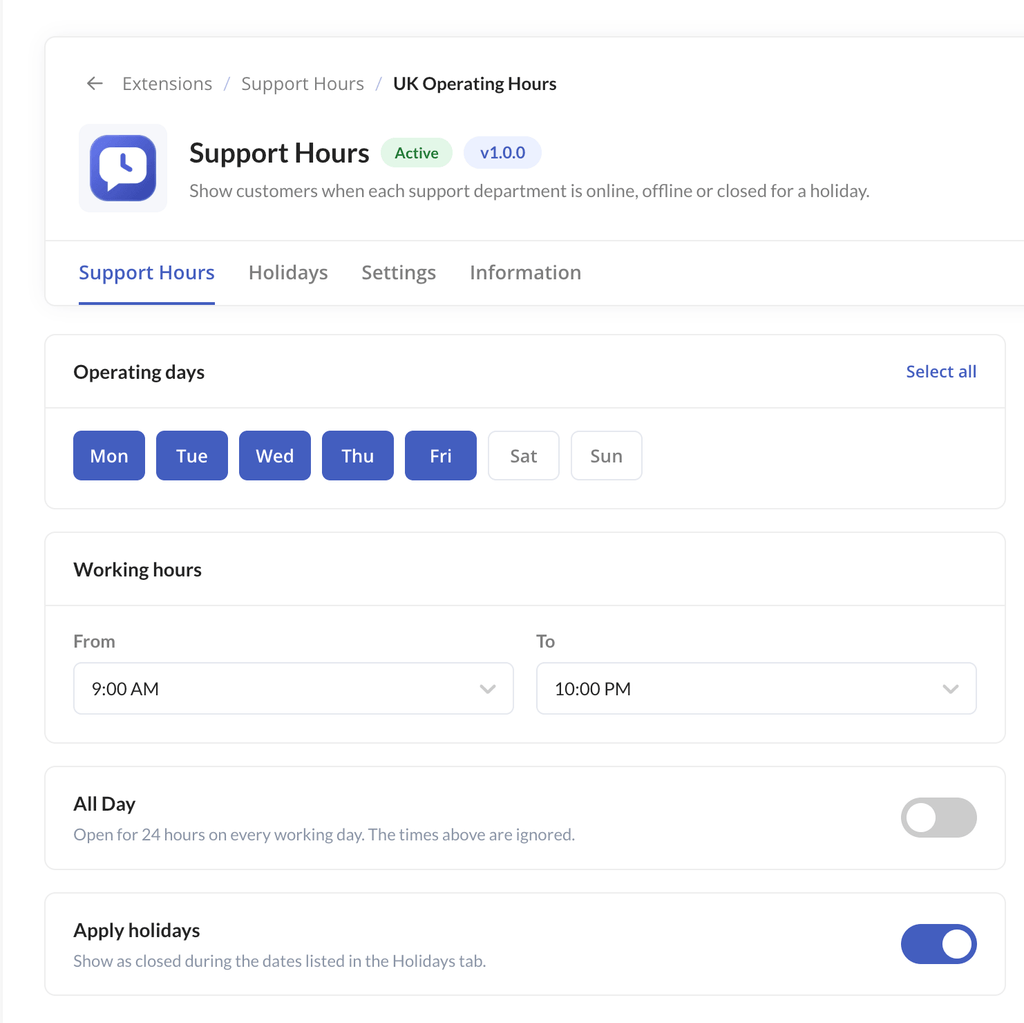
Working Hours
Set the time slots when the department can be reached on each working day. Clients see the department as online inside these hours and away outside them.
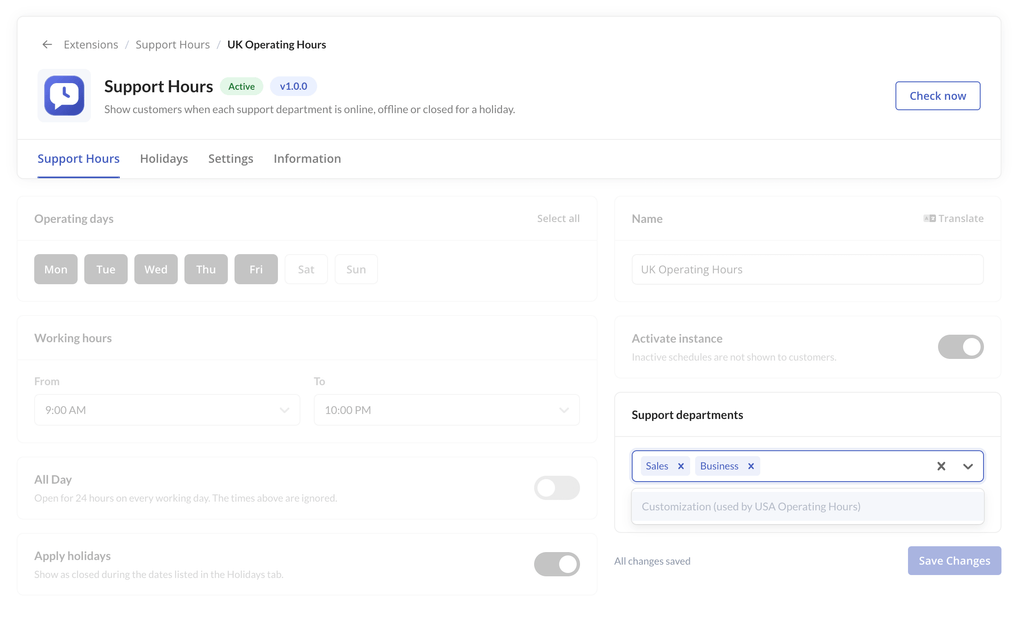
Departments
Select which WHMCS support departments display their availability. Departments you do not select show no hours or status.
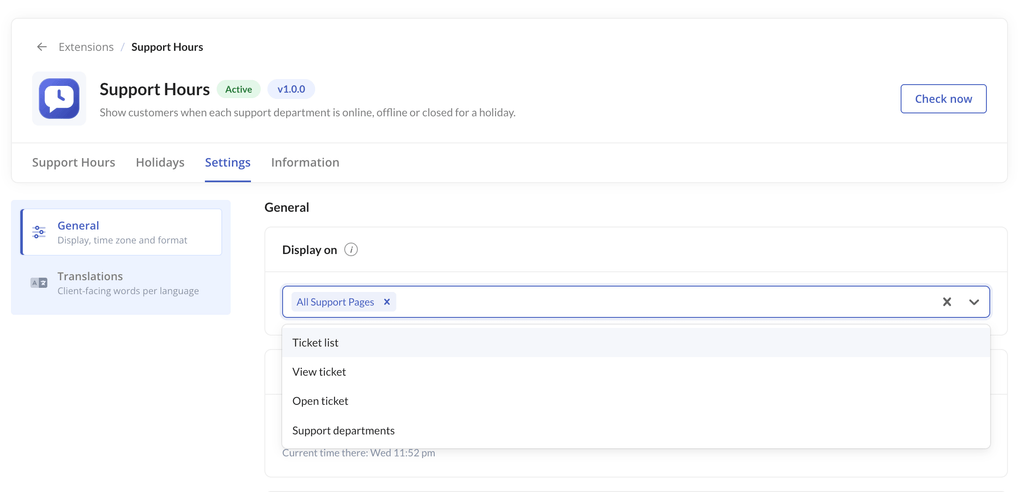
Display Pages
Choose where the hours appear:
- Whole client area: hours and status show on every supported page.
- Selected pages: hours and status show only on the pages you pick.
Time Zone
Select the time zone your hours are displayed in. The same time zone is used to work out the current status.
Time Format
Choose between 12-hour and 24-hour time.
Holidays
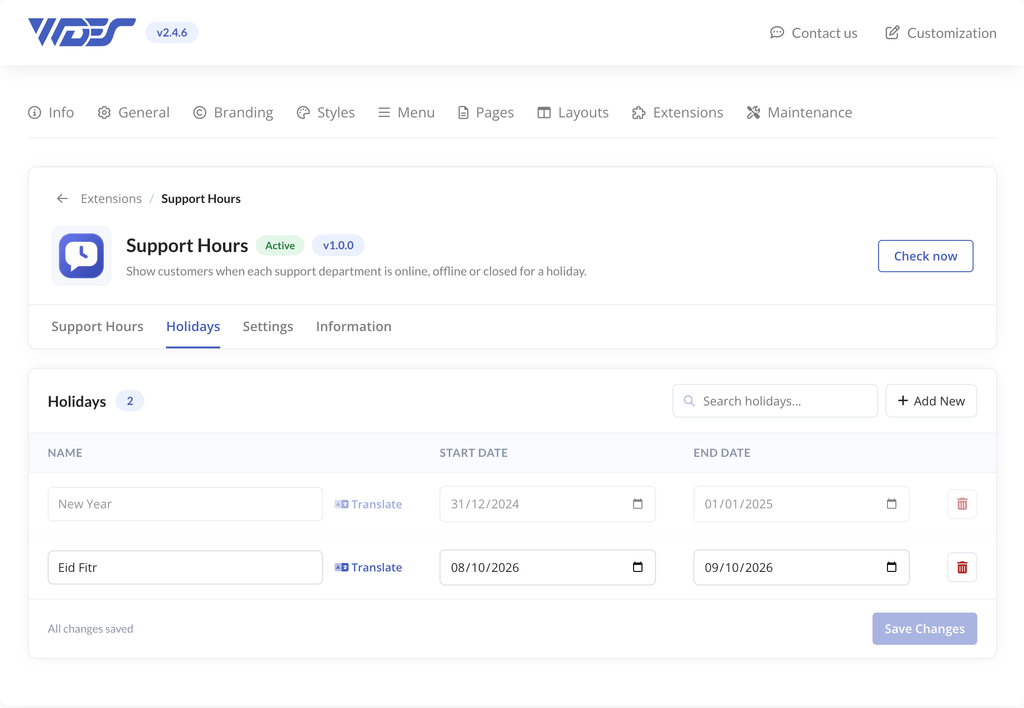
Add holidays and planned breaks for each department. Clients are notified in advance, and the department shows as unavailable during the holiday.
- Open the Holidays section.
- Add a new holiday and enter its name and dates.
- Choose the department it applies to.
- Click Save Changes.
What Clients See
| Location | What is shown |
|---|---|
| Top navigation | A status indicator on every client area page, with a dropdown of department statuses |
| Support departments page | Each department’s hours, time zone and whether it is open now |
| Open ticket page | The selected department’s status |
| Ticket department dropdown | Which departments are available right now |
Important
- The status is calculated from the time zone you set, not the client’s local time.
- Clear the template cache after changing settings if the client area does not update: Utilities > System > System Cleanup > Empty Template Cache.