
 Last Update: September 14, 2026

This article will walk you through the steps necessary to install the Pages Templates extension for the Phox Template module on your WHMCS server. We will guide you carefully through the whole installation process, so follow the steps below in the order they are listed.
About The Extension
Out of the box, each client-area page only offers the templates that shipped with the Phox theme. The Pages Templates extension adds a library of additional templates hosted on wdes, downloadable on demand into the right page folder.
Install one and it behaves exactly like a built-in template — Phox lists, previews, activates and deletes it with no further involvement from the extension. The extension is a delivery mechanism: it does not render templates or change how your client area works.
Product Requirements
Below is a list of requirements for the latest product version. Make sure that your server meets all of the requirements below BEFORE you start the installation process:
- Requires the phox_template module 2.4.4 or later.
- Requires an active Phox license assigned to the WHMCS installation.
- Requires IonCube Loader 14 or later.
- Supports PHP 8.1, 8.2, and 8.3.
- Requires outbound HTTPS access from your server to wdes, so the template library can be listed and downloaded.
- Requires write permissions on the client-area pages template folders.
Download Files
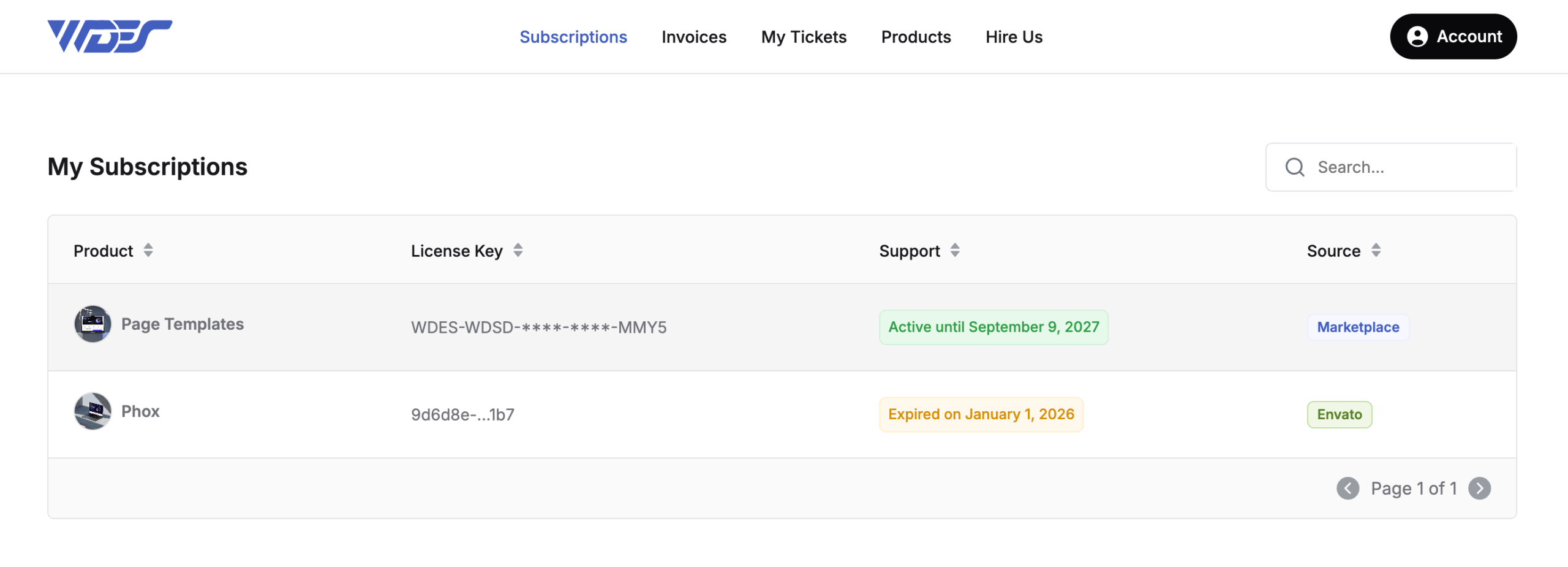
- Log in to your client portal account.
- Navigate to Subscriptions.
- Choose the Pages Templates product and click on it.
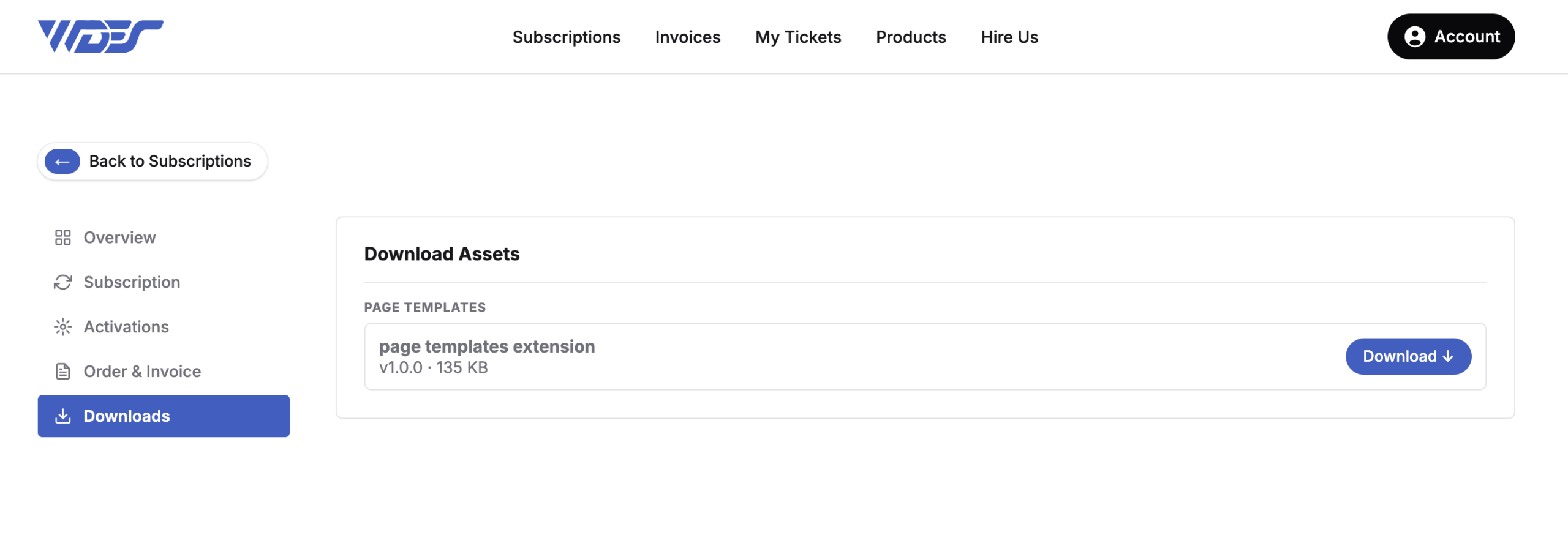
- Download the latest version by pressing the “Download” button on the main product page.
Upload Files
- Extract the .zip folder that has been downloaded.
- Using an FTP client, upload the contents of the extracted
pages-templatesfolder to the following directory within your WHMCS installation:WHMCS > Modules > Addons > phox_templates > extensions > ...Replace...with the appropriate extension directory.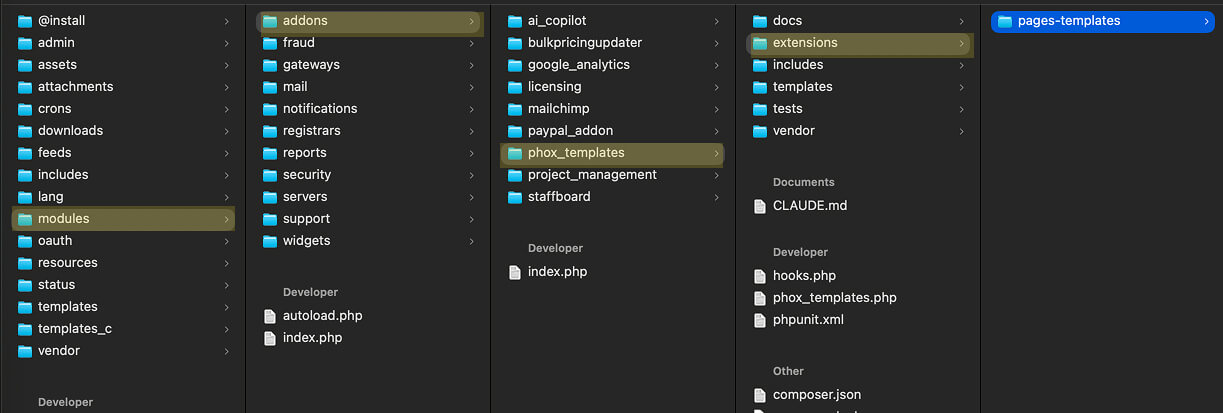
- Make sure that during the upload process all of the files have been uploaded correctly and that no errors occurred.
Activate Extension
- Log in to the WHMCS admin area on your server.
- Go to “Addons” and then click “Phox Template” in the navigation menu of your WHMCS admin area.
- Select “Extensions” from the list of available tabs.
- Find the “Pages Templates” extension in the list — it will be marked as “Available” — and press the “Activate” button below its name.
Once the extension is active, go to the Pages tab and click the “Manage” icon next to any page. On the page screen you will find the Template Library panel on the right, listing all of the additional templates available for that page. Press “Refresh Library” to fetch the newest ones, then download the template you want — it will appear in the Pages Templates list on the left, next to the templates that shipped with the theme, ready to be activated.