
 Last Update: September 14, 2026

Welcome to the documentation for updating the Pages Templates extension for the Phox Template module. This guide will provide you with step-by-step instructions to ensure a seamless and trouble-free update process. Whether you are a seasoned user or new to the theme, we have got you covered. Let’s dive in and keep your extension up to date and running smoothly.
Product Requirements
Below is a list of requirements for the latest product version. Make sure that your server meets all of the requirements below BEFORE you start the update process:
- Requires the phox_template module 2.4.4 and later.
- Requires an active Phox license assigned to the WHMCS installation.
- Requires IonCube Loader 14 or later.
- Supports PHP 8.1, 8.2, and 8.3.
- Requires outbound HTTPS access from your server to wdes, so the template library can be listed and downloaded.
- Requires write permissions on the client-area pages templates folders.
Before Start
Before initiating the update process, it is crucial to perform a thorough compatibility check. Please ensure that the extension version you intend to upgrade to is fully compatible with your current Phox Template module version. This step is essential to guarantee a smooth and trouble-free update, as ensuring compatibility will help prevent any potential issues that may arise from differences between the module and the extension versions. By taking a moment to verify compatibility, you can confidently proceed with the update, knowing that it is tailored to work seamlessly with your existing setup.
Download Latest Files
- Log in to your client portal account.
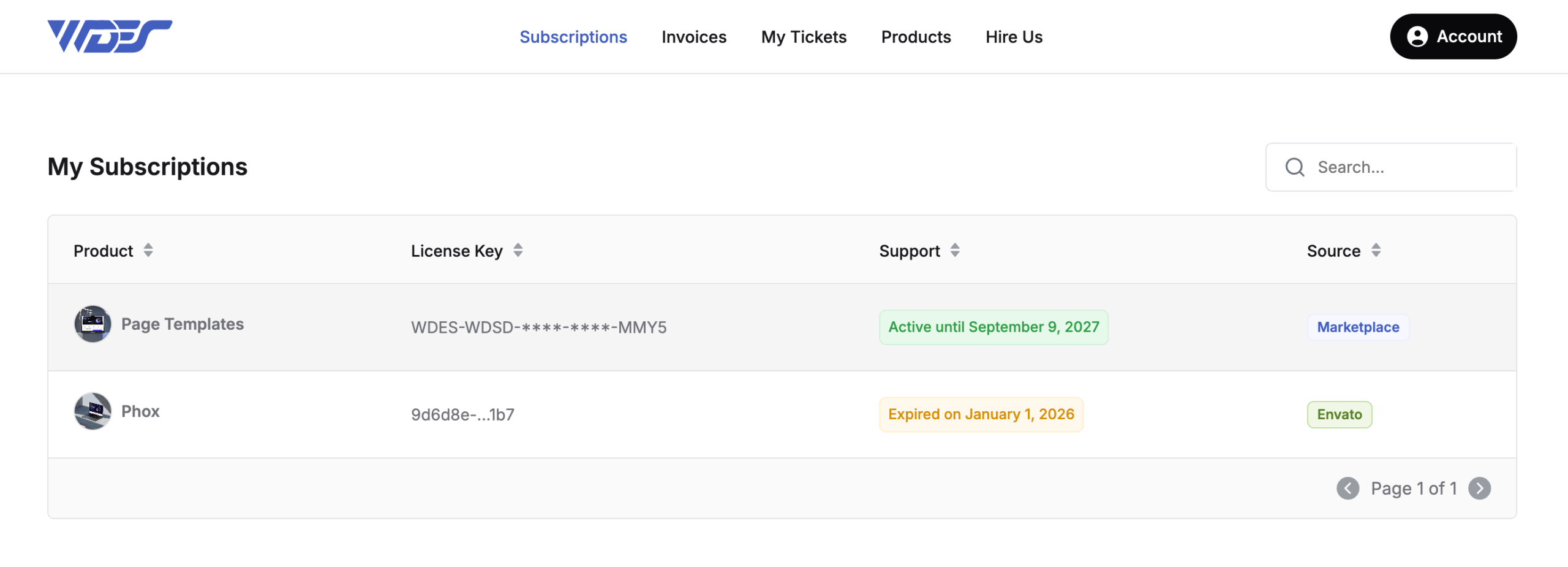
- Navigate to Subscriptions.
- Choose the Pages Templates product and click on it.
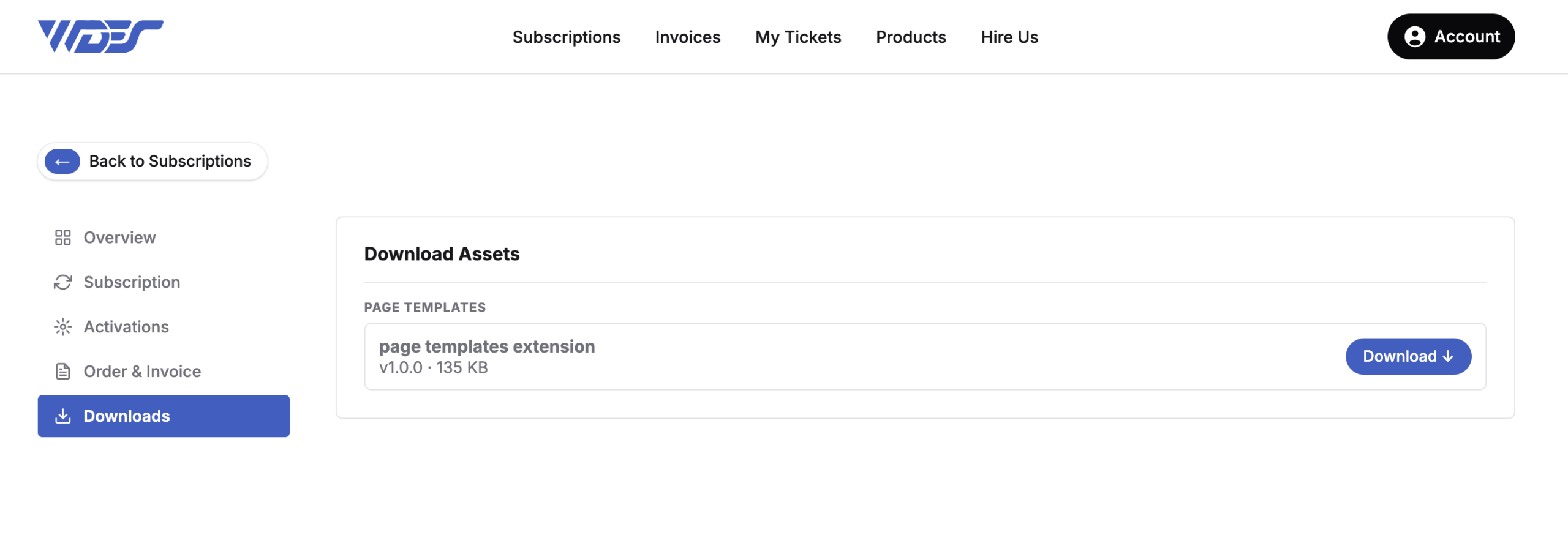
- Download the latest version by pressing the “Download” button on the main product page.
Upload Files
- Extract the .zip folder that has been downloaded.
- Using an FTP client, upload the contents of the extracted
pages-templatesfolder to the following directory within your WHMCS installation:WHMCS > Modules > Addons > phox_templates > extensions > ...Replace...with the appropriate extension directory.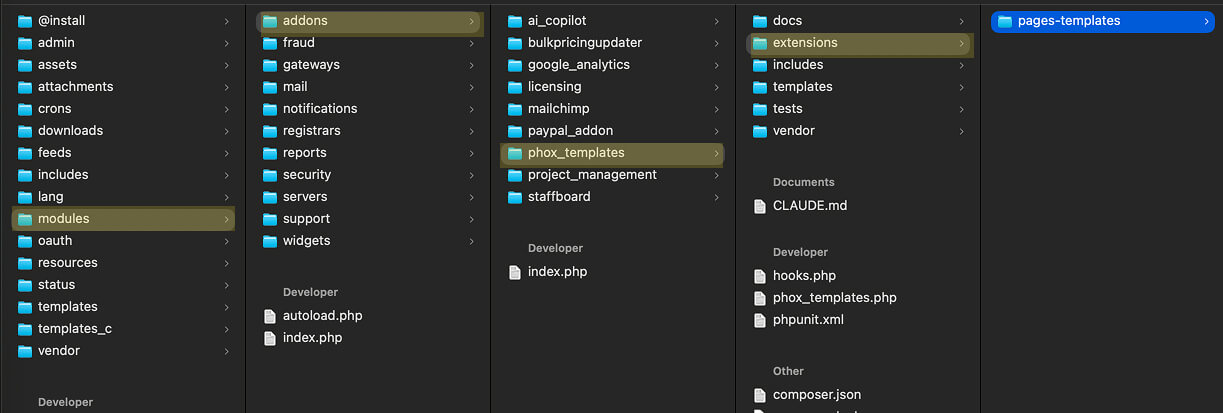
- Make sure that during the upload process all of the files have been uploaded correctly and that no errors occurred.
Clear Cache
- Clear your browser and server cache (for example Cloudflare).
- Clear the WHMCS template cache in: Utilities > System > System Cleanup > “Go” > “Empty Template Cache”.
Your product has been successfully updated to the latest version.