
 Last Update: January 31, 2026
Generate creative and relevant domain names instantly with our AI domain suggestion tool. Powered by OpenAI, Gemini, and WHMCS, it gives you flexible and intelligent options every time.
How to Use AI with OpenAI for Smart Domain Suggestions
Get an API Key From OpenAI
Learn how to get an API Key from OpenAI
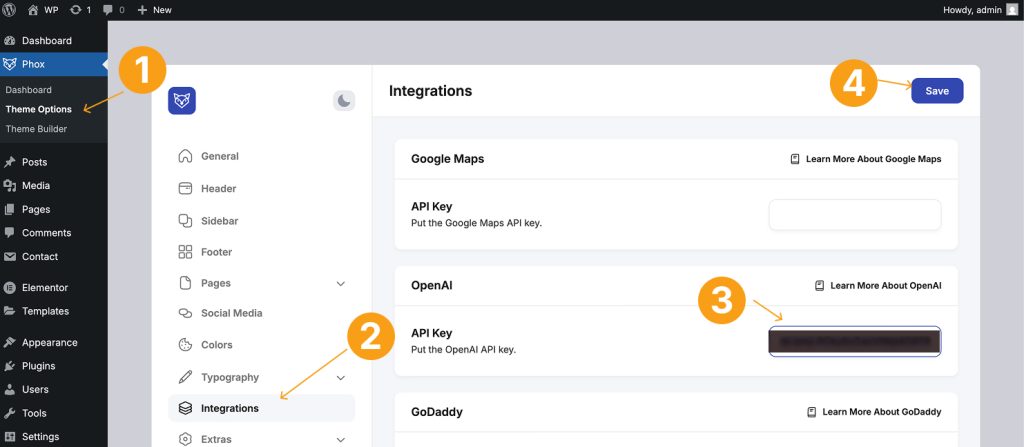
Add API Key to Phox Admin Panel
Select OpenAI Provider, then put the Api Key that you got from OpenAI.
Enable AI Domain Suggestions in the Domain Settings
Enable AI Suggestions Switch to show it.

How to Use AI with Gemini for Smart Domain Suggestions
Get an API Key From Google Studio
Learn how to get an API Key from Google Studio
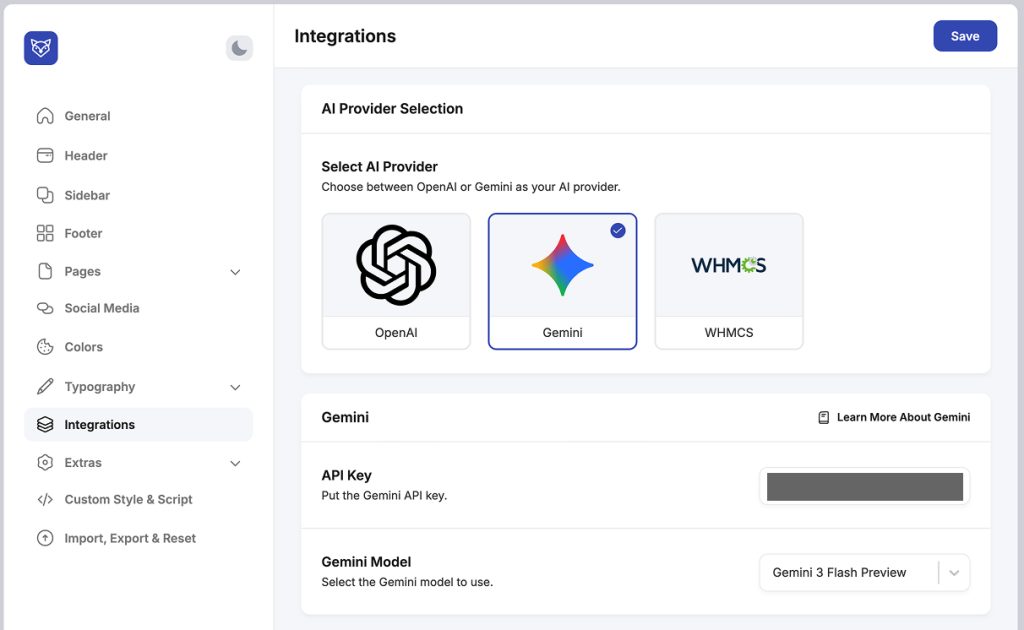
Add API Key to Phox Admin Panel
Select OpenAI Provider, then put the API Key that you got from Google Studio.
Enable AI Domain Suggestions in the Domain Settings
Make sure to enable AI Suggestion and switch the toggle to yes
How to Use AI with WHMCS for Smart Domain Suggestions
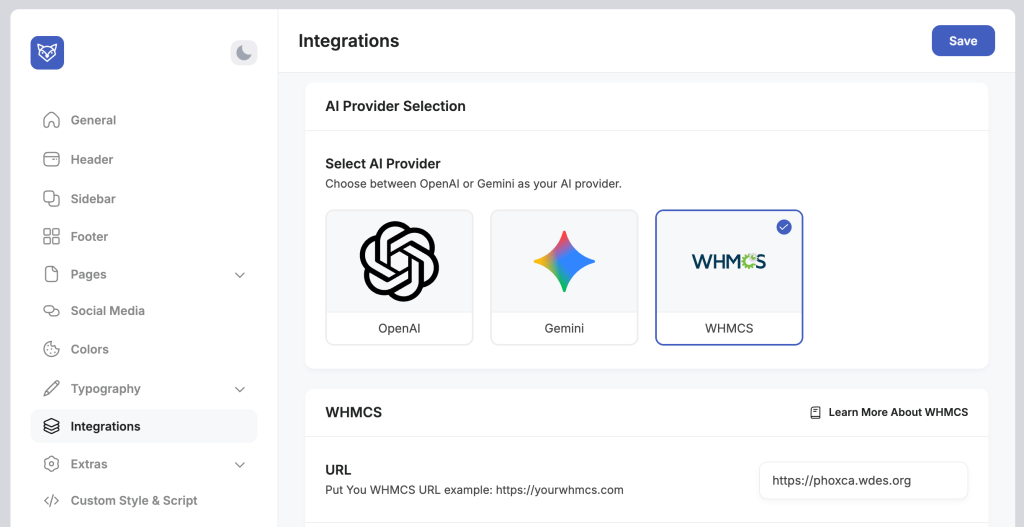
Add WHMCS URL to Phox Admin Panel
From the admin panel, navigate to the WHMCS section and enter the URL, API ID, and API Secret. After that, click the save button. Next, go to the AI Provider Selection section, select WHMCS, and click the save button again.
Enable AI Domain Suggestions in the Domain Settings
Make sure to enable AI Suggestion and switch the toggle to yes
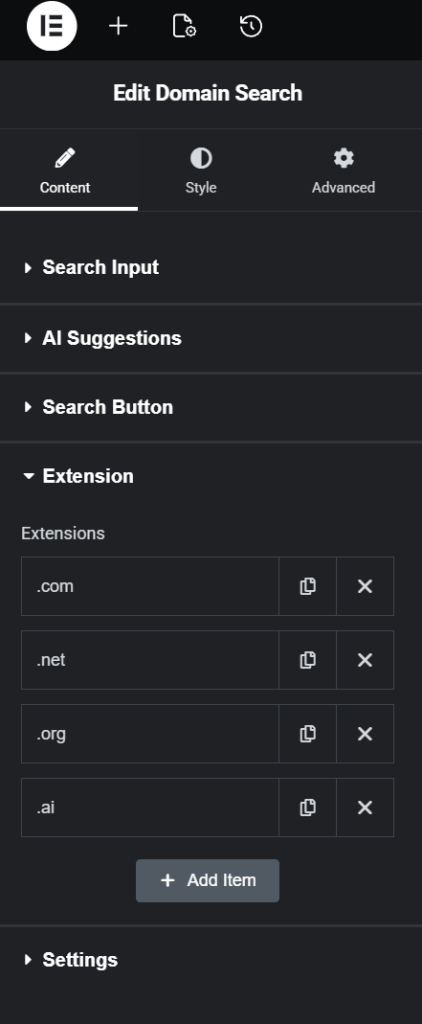
Add extensions similar to those you have added in WHMCS.
Access the Extensions sectionand add new extensions such as .com, .org, and .net. Ensure that the extensions you want to add are present in the Domains TLDs section of your WHMCS.
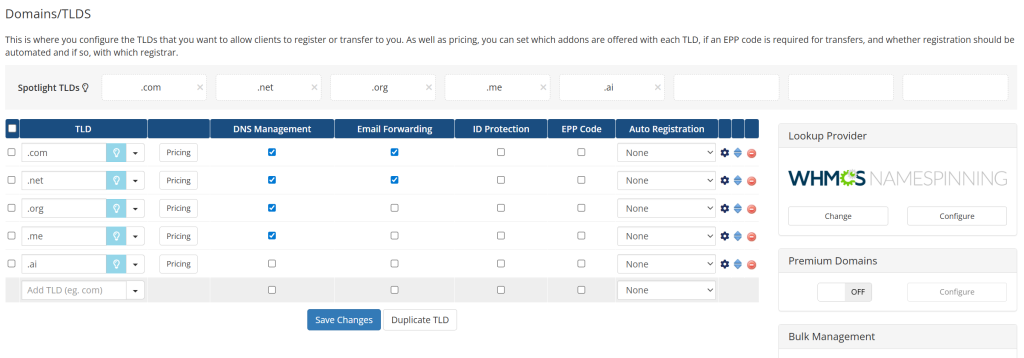
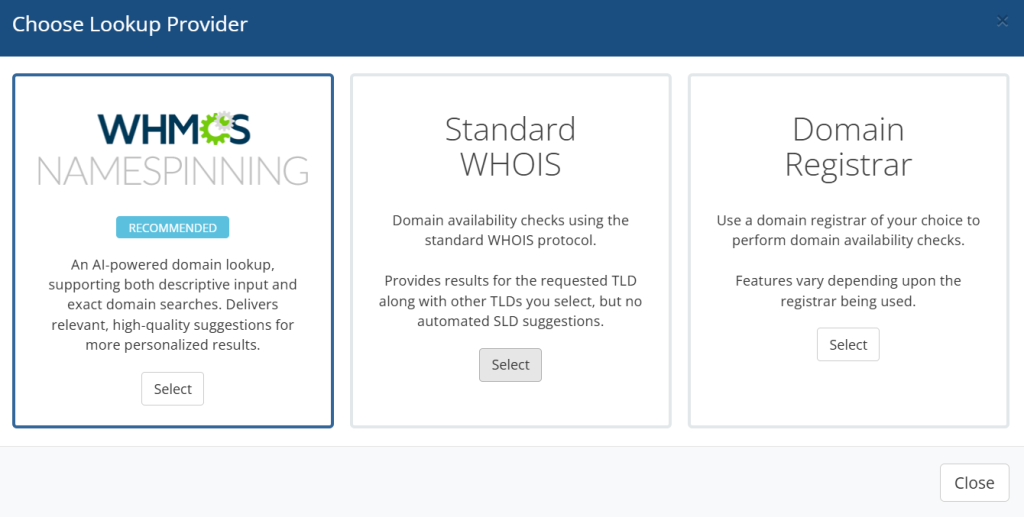
Configure a Lookup Provider
AI Domain Search is not supported by all lookup providers. It is only available via the WHMCS Namespace, so please ensure this is selected.
⚠️ To use this feature, you must whitelist your WordPress server IP in WHMCS.
Go to System Settings → General Settings → Security and add the IP to API IP Access Restriction.