 Last Update: October 10, 2026

Overview
All settings are under Addons > Phox WHMCS Templates > Extensions > Email Template > Manage. The page has five tabs: Templates, Predefined Messages, Email Types, Settings and Information.
Templates
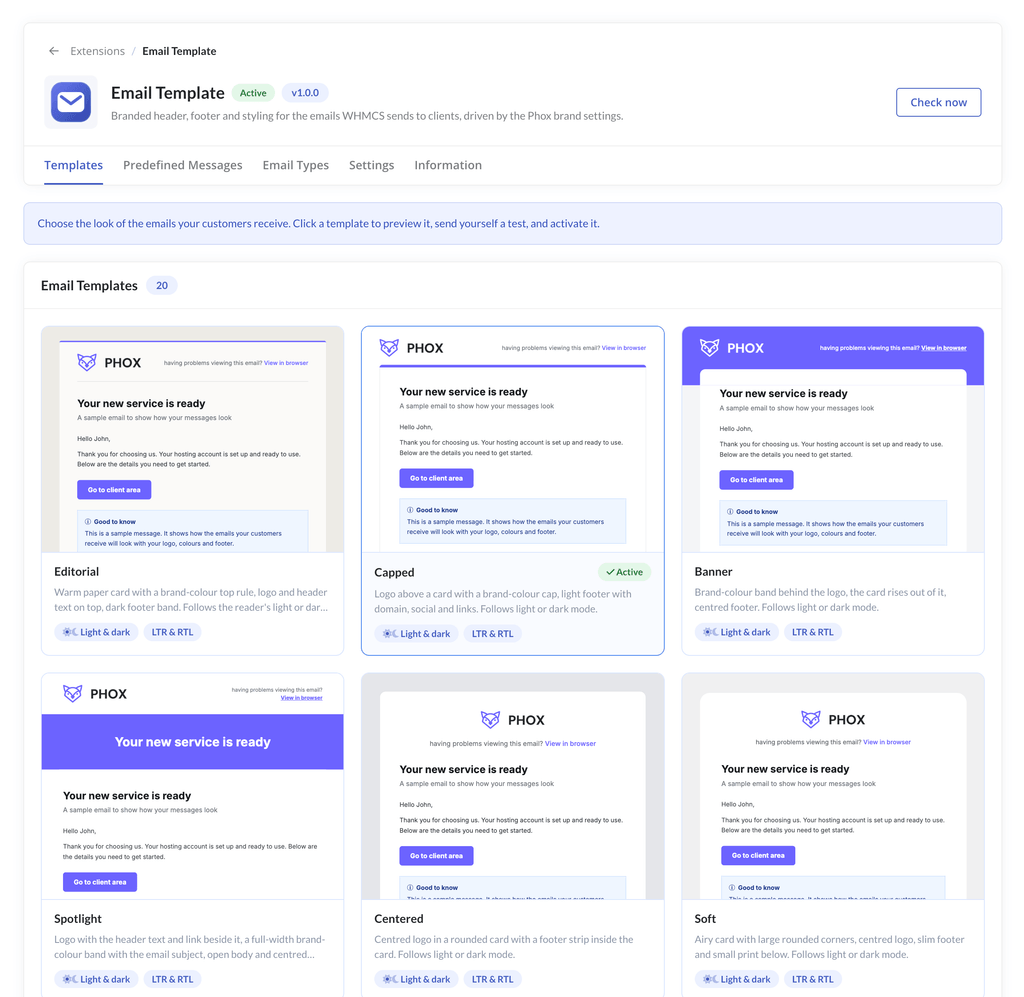
The Templates tab sets the default look of the emails your clients receive. There are 20 templates:
Editorial, Capped, Banner, Spotlight, Centered, Soft, Midnight, Bold, Corporate, Stacked, Headline, Aurora, Receipt, Blocks, Showcase, Masthead, Gazette, Bulletin, Arch and Label.
Every template supports light and dark mode, and LTR and RTL.
Preview a Template
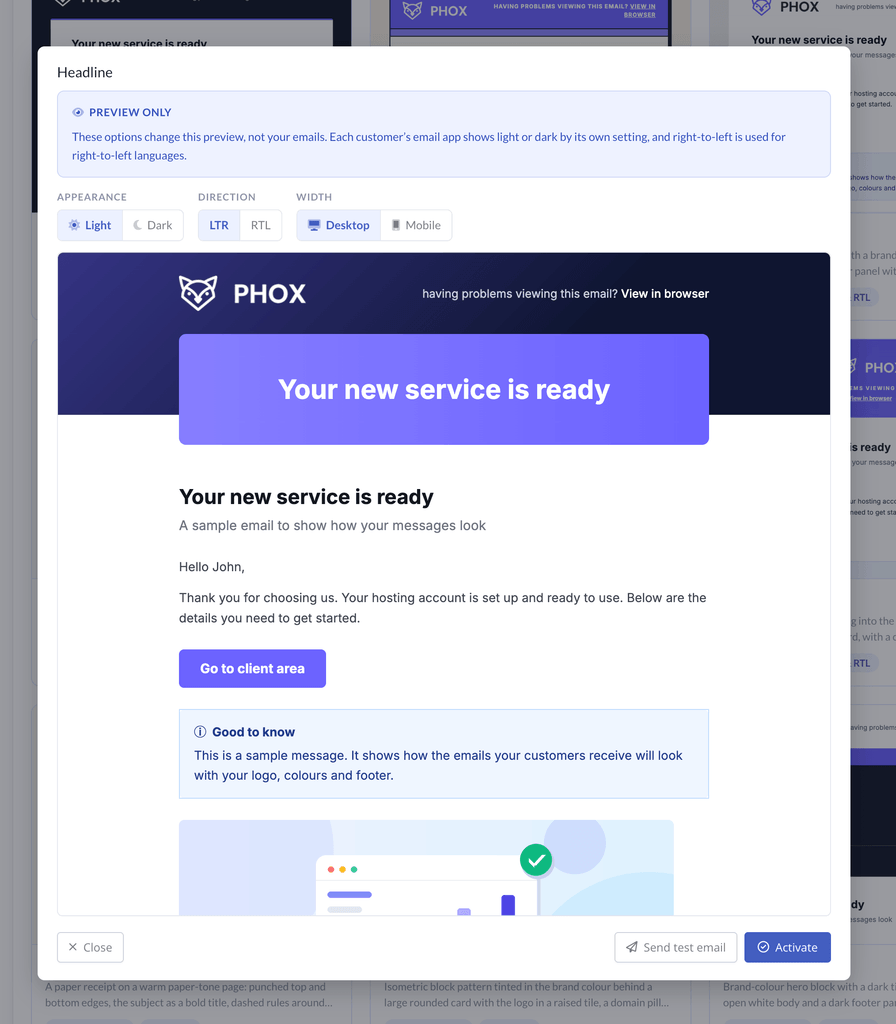
Click a template to open its preview. Three switches change what you see:
- Appearance: Light or Dark
- Direction: LTR or RTL
- Width: Desktop or Mobile
These switches change the preview only, not your emails. Each client’s email app shows light or dark by its own setting, and right-to-left is used for right-to-left languages.
The preview uses a sample message. It shows how your emails look with your logo, colors and footer.
Send a Test Email
In the preview, click Send test email. The test is sent to your own admin email address, in the system language.
Activate a Template
In the preview, click Activate. The template is marked Active and becomes the default for every email type that has no template of its own.
Predefined Messages
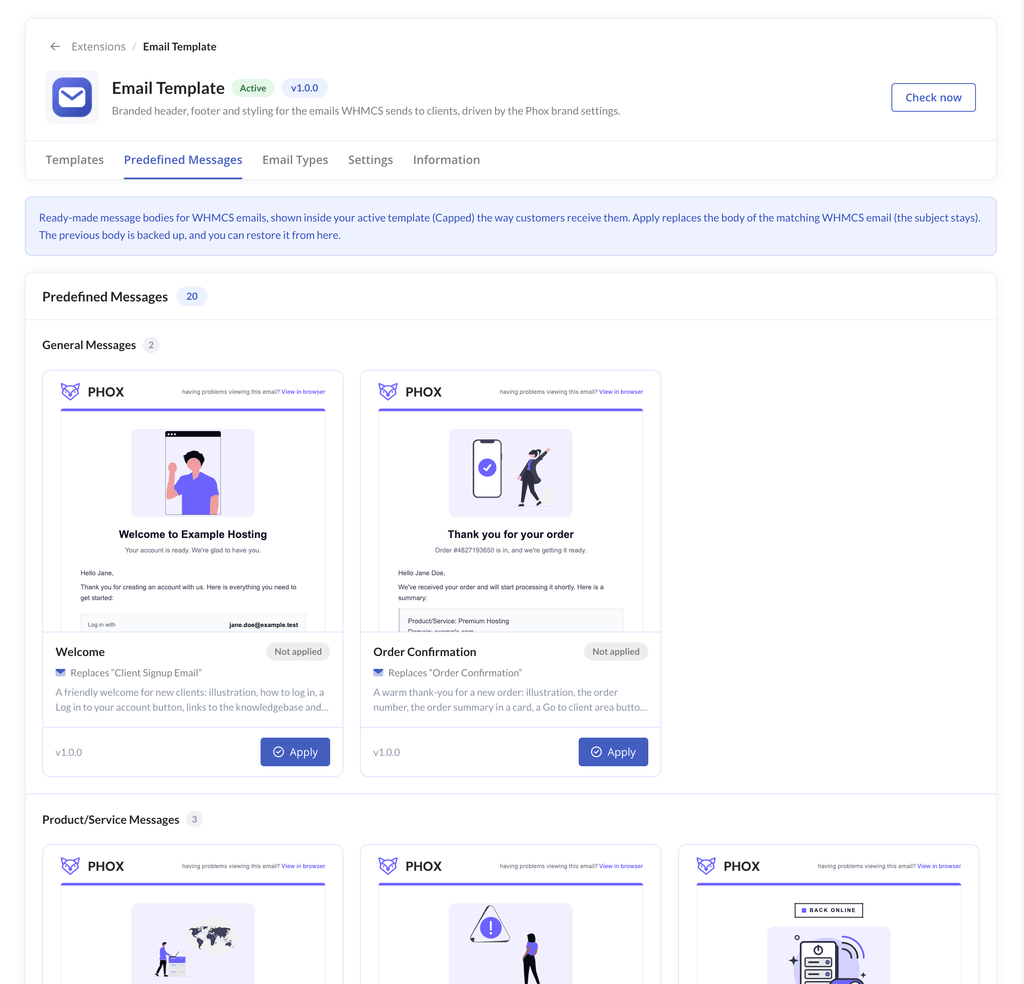
Predefined messages are ready-made message bodies for WHMCS emails. The tab shows each one inside your active template, the way clients receive it.
| Group | Message | Replaces the WHMCS email |
|---|---|---|
| General | Welcome | Client Signup Email |
| General | Order Confirmation | Order Confirmation |
| Product/Service | Hosting Welcome | Hosting Account Welcome Email |
| Product/Service | Service Suspended | Service Suspension Notification |
| Product/Service | Service Back Online | Service Unsuspension Notification |
| Domain | Domain Registered | Domain Registration Confirmation |
| Domain | Domain Renewed | Domain Renewal Confirmation |
| Domain | Expired Domain | Expired Domain Notice |
| Domain | Upcoming Domain Renewal | Upcoming Domain Renewal Notice |
| Invoice | Card Payment Failed | Credit Card Payment Failed |
| Invoice | First Overdue Notice | First Invoice Overdue Notice |
| Invoice | Invoice Created | Invoice Created |
| Invoice | Payment Receipt | Invoice Payment Confirmation |
| Invoice | Payment Reminder | Invoice Payment Reminder |
| Invoice | Second Overdue Notice | Second Invoice Overdue Notice |
| Invoice | Final Overdue Notice | Third Invoice Overdue Notice |
| Support | Ticket Opened | Support Ticket Opened |
| Support | Ticket Reply | Support Ticket Reply |
| User | Email Verification | Email Address Verification |
| User | Password Reset | Password Reset Validation |
Preview a Message
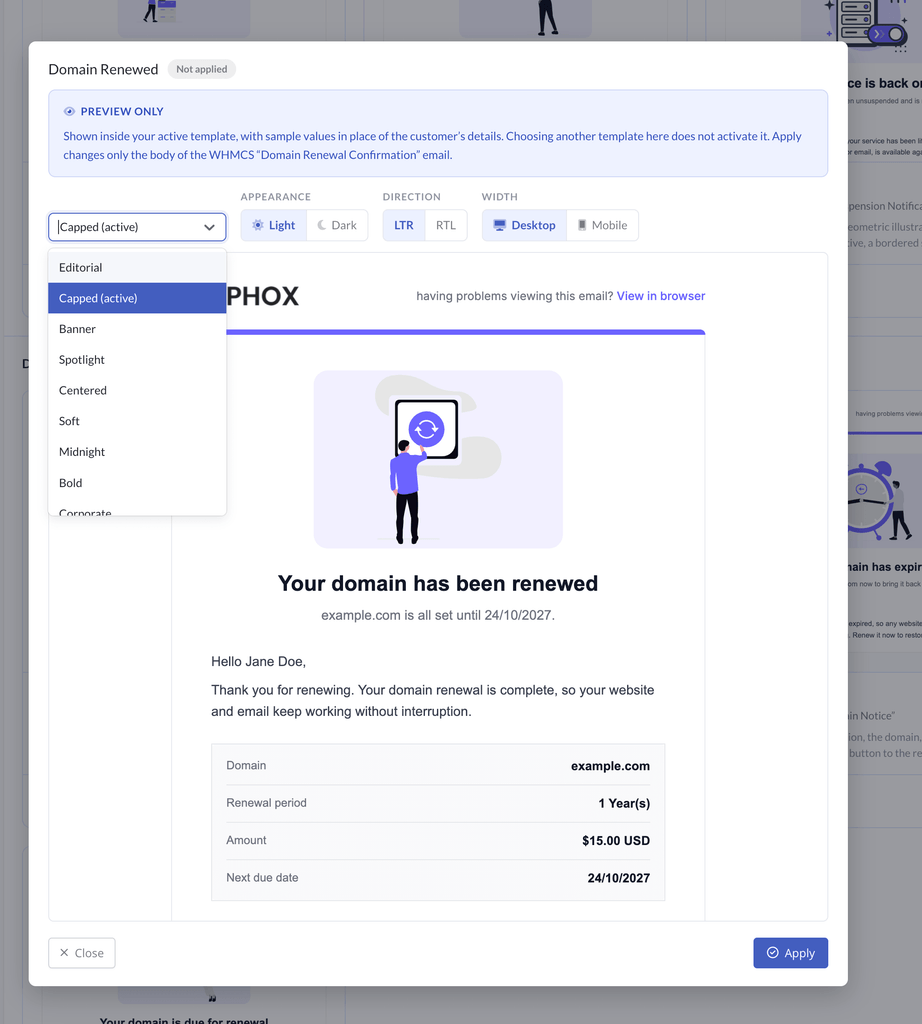
Click a message to preview it. The preview has the same Appearance, Direction and Width switches, plus a template list so you can see the message in another template. Choosing another template here does not activate it. Sample values are shown in place of the client’s details.
Apply a Message
- Open the Predefined Messages tab.
- Find the message and click Apply.
Apply replaces the body of the matching WHMCS email. The subject stays the same. The message status changes from Not applied to applied.
Restore the Previous Message
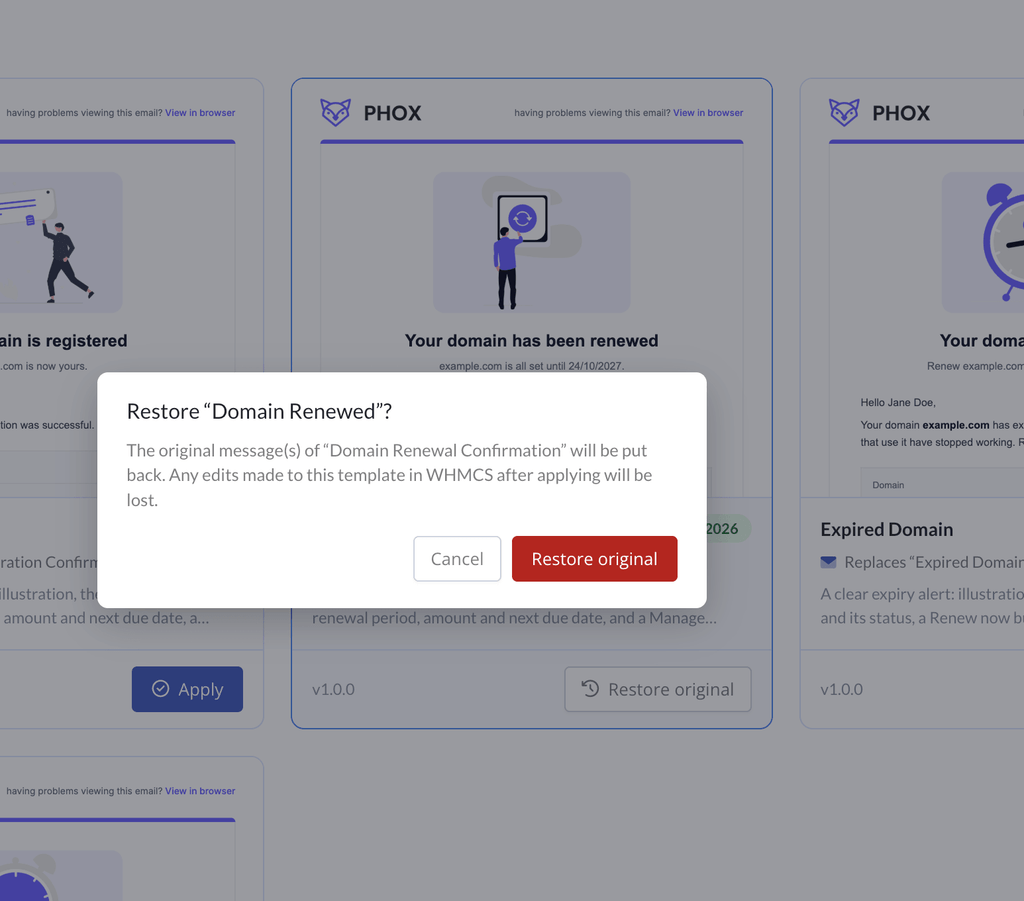
The previous body is backed up when you apply a message. You can restore it from the same tab.
Note: The Hosting Welcome message is built for the WHMCS Hosting Account Welcome Email with a cPanel control panel link.
Email Types
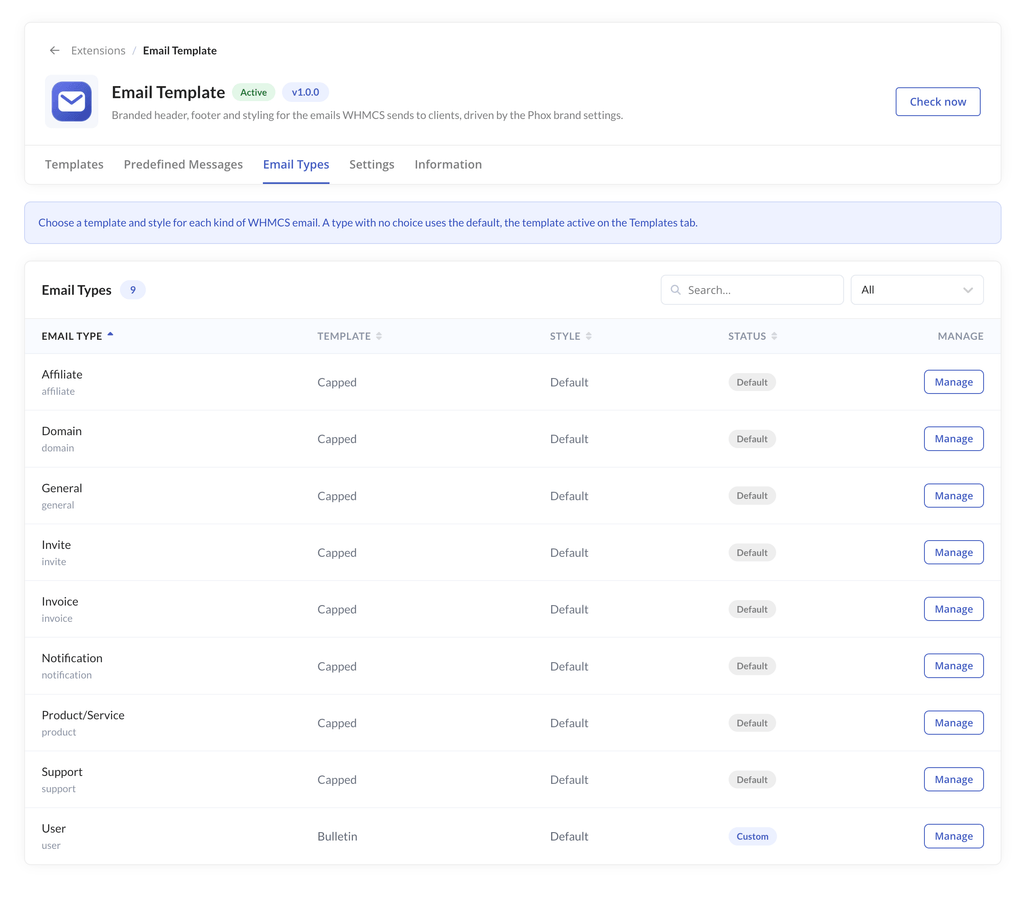
The Email Types tab lets you use a different template for each kind of WHMCS email. A type with no choice uses the default, the template active on the Templates tab.
There are nine email types: Affiliate, Domain, General, Invite, Invoice, Notification, Product/Service, Support and User.
The table shows the template, style and status of each type:
- Default: the type follows the active template.
- Custom: the type has its own template.
Use the search box and the status filter to find a type.
Assign a Template to an Email Type
- Open the Email Types tab.
- Click Manage next to the email type.
- Select a template. Click Preview to check it first.
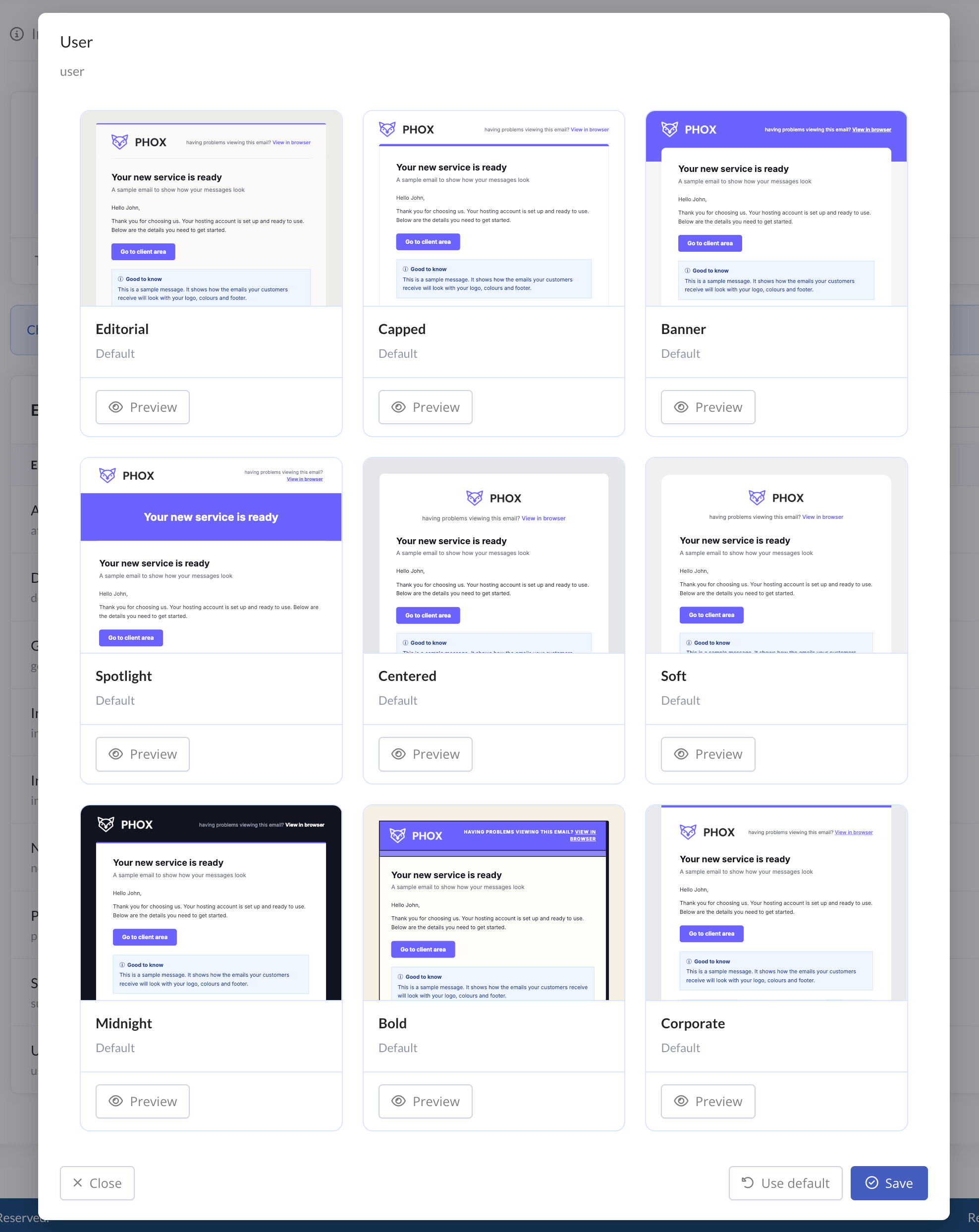
- Click Save.
To go back to the default template, open Manage again and click Use default.
Settings
The Settings tab has four sections: General, Social Links, Footer and Translations. Click Save Changes after editing.
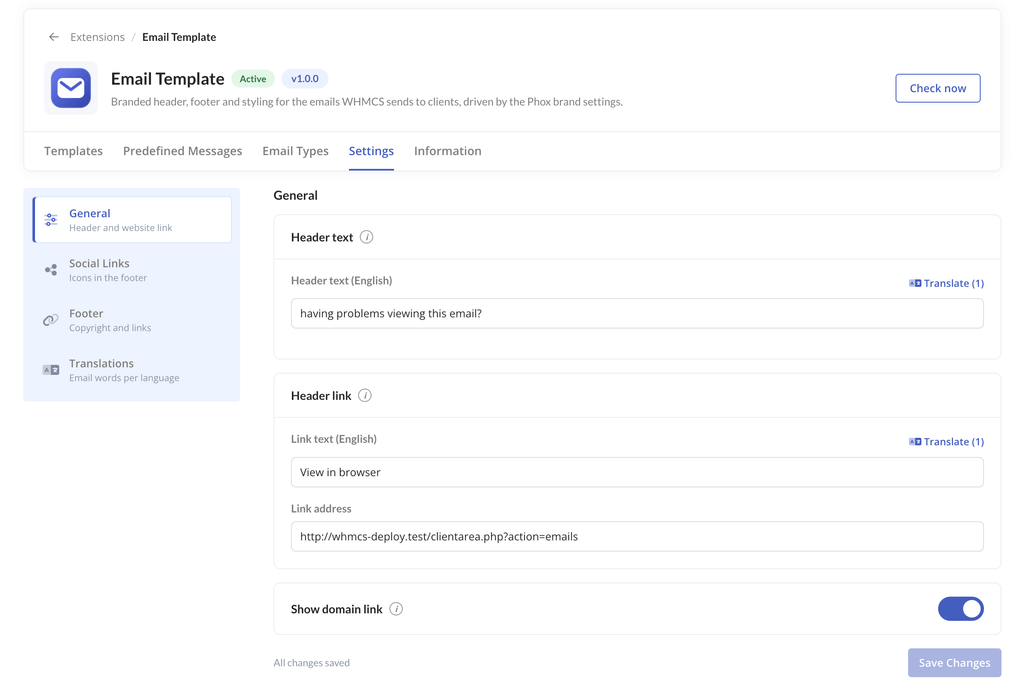
General
- Header text: A line of text shown above the email content, next to the logo. Leave it empty to hide it. Plain text only.
- Header link: The words of the link in the header, for example “View in browser”, and the address it opens. Leave the link text empty to hide the link.
- Show domain link: Shows a link to your website address in the footer of every email.
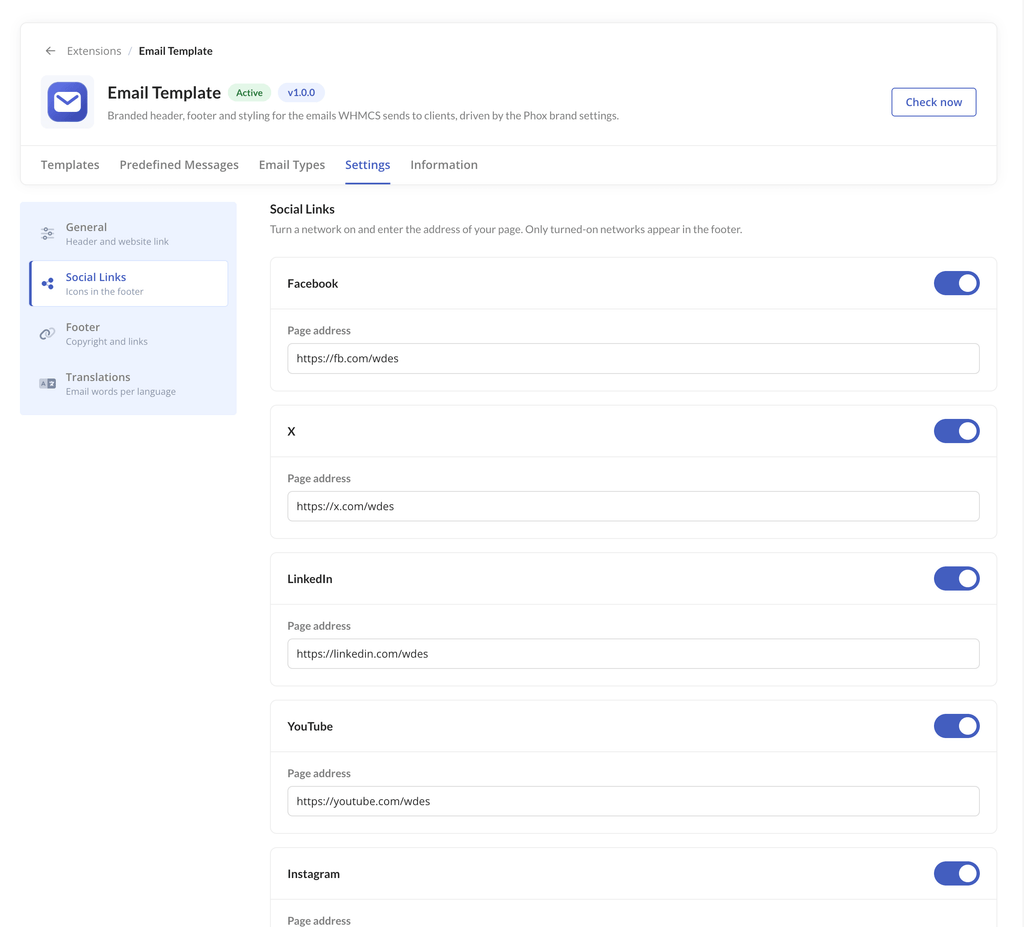
Social Links
Turn a network on and enter the address of your page. Only turned-on networks appear in the footer.
Supported networks: Facebook, X, LinkedIn, YouTube, Instagram, TikTok, WhatsApp, Telegram and Discord.
Enter the full address, starting with https://.
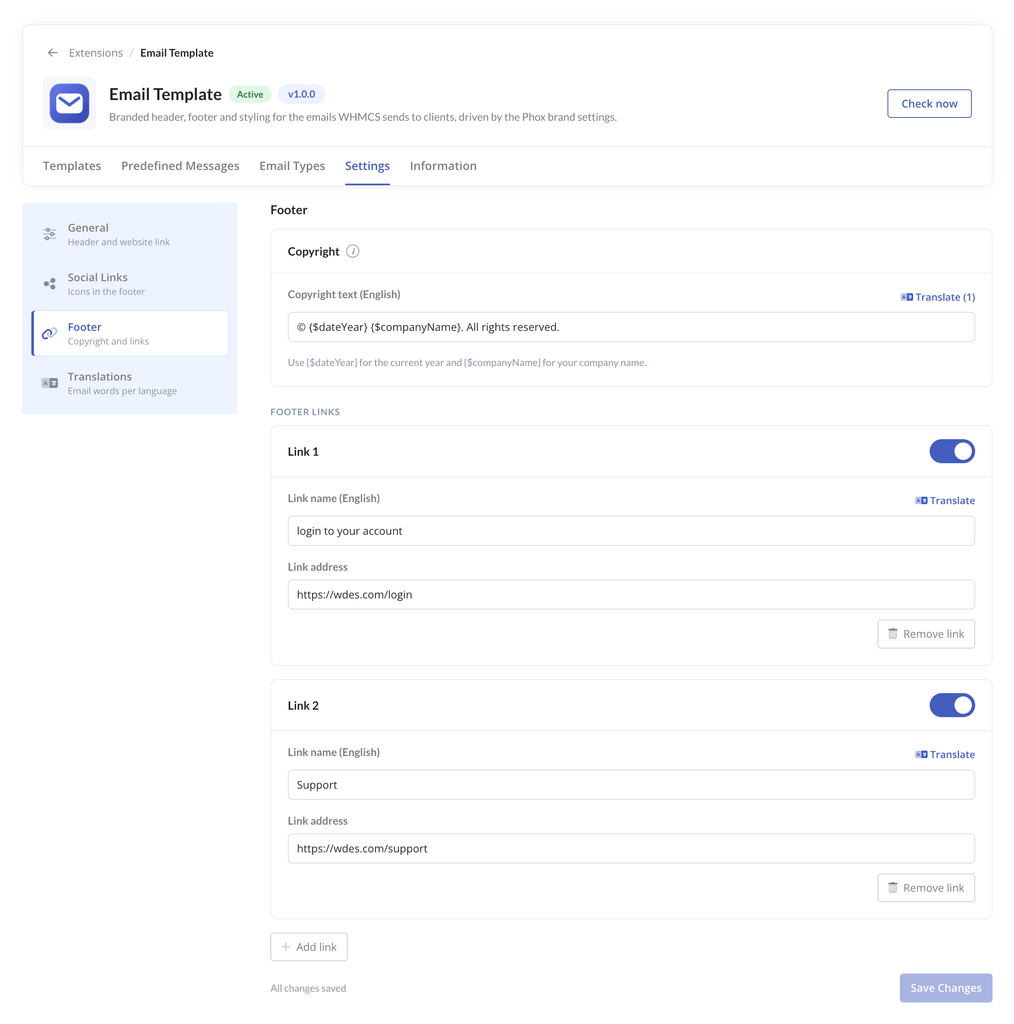
Footer
- Copyright: The copyright text in the footer of every email. Use
{$dateYear}for the current year and{$companyName}for your company name. Example:© {$dateYear} {$companyName}. All rights reserved. - Footer links: Each link has a name and an address. Click Add link to add one and Remove link to delete it. Enter the full address, starting with
https://.
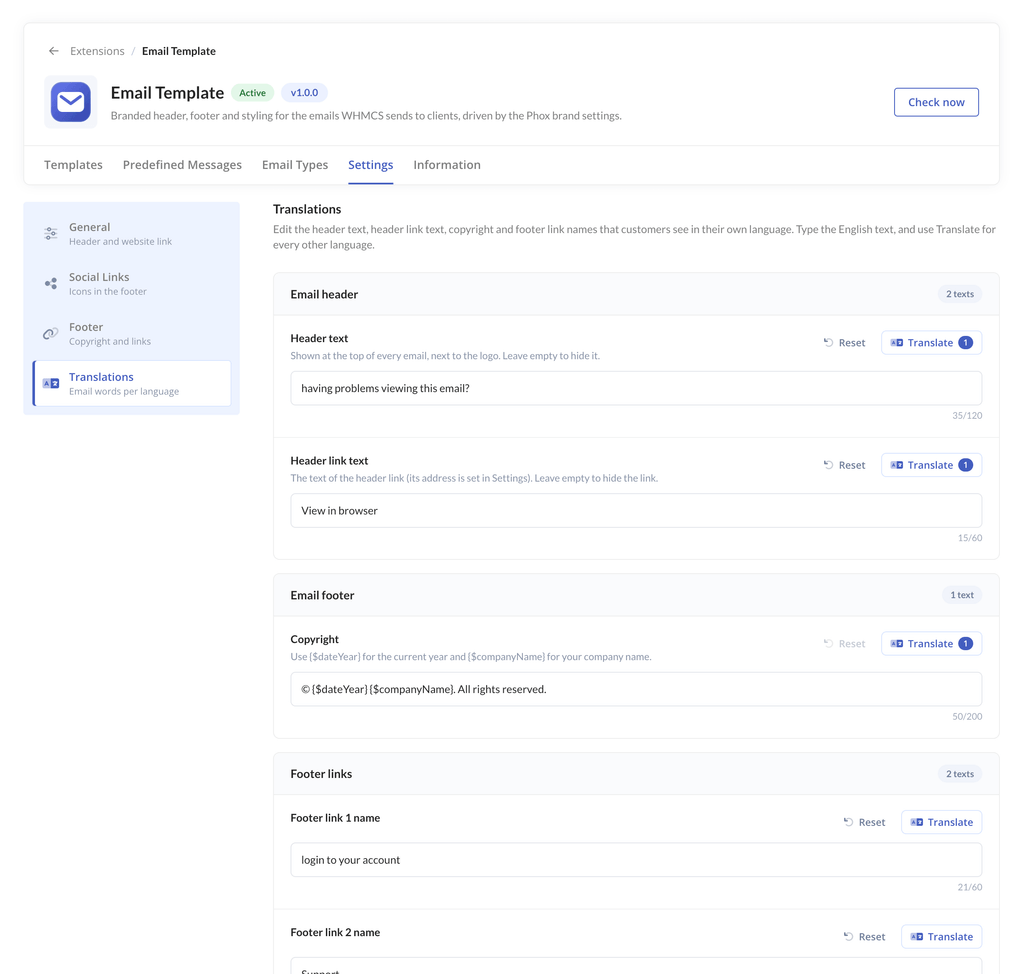
Translations
This section lists every text your clients see in their own language: header text, header link text, copyright and footer link names.
- Type the English text in the field.
- Click Translate next to the field.
- Enter the text for each language. Leave a language empty to use the English text.
- Click Apply, then Save changes.
The number on the Translate button shows how many languages are translated. Click Reset to restore a field.
The same Translate button is also next to each field in General and Footer.
Each client receives emails in the language of their account.
Logo and Colors
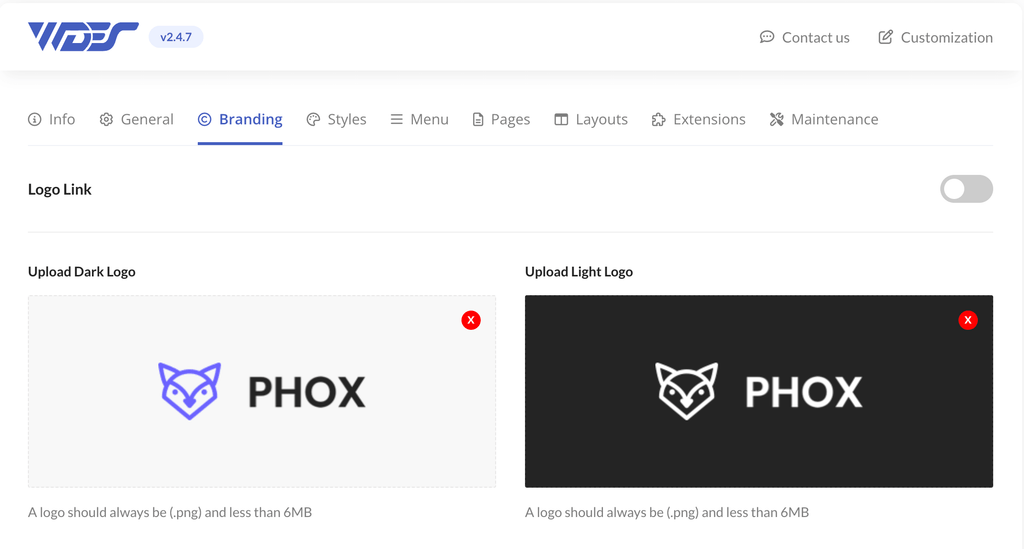
The emails use the logo uploaded in Phox WHMCS Templates > Branding.
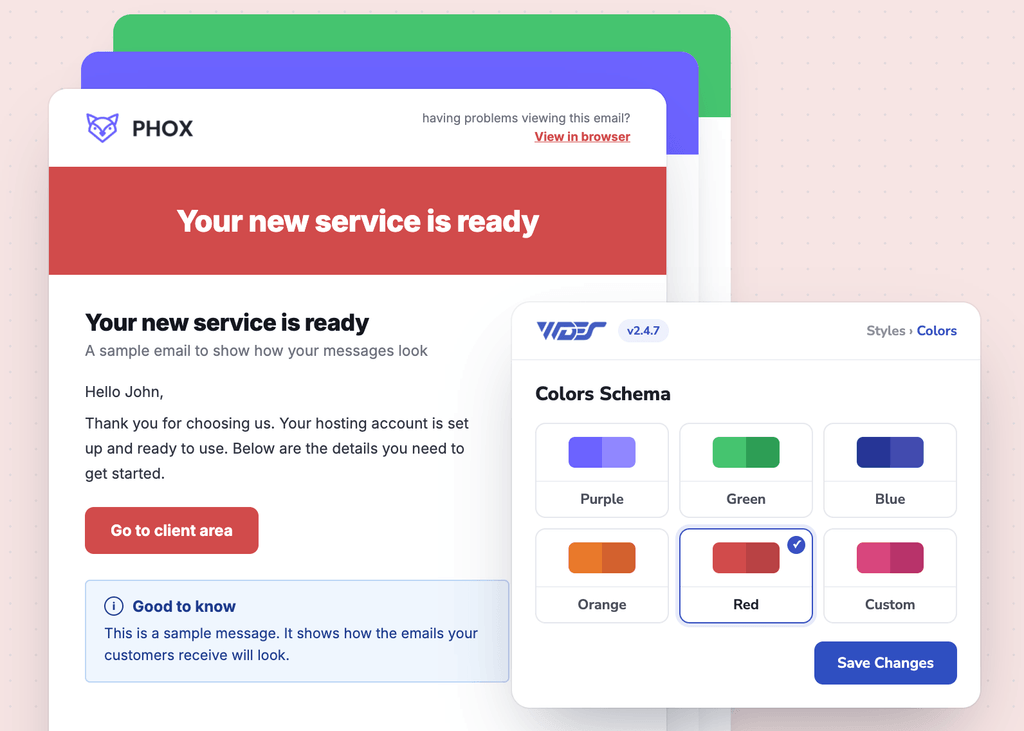
Banners, buttons, links, and accent colors follow your Phox Style Manager color scheme, so no code changes are needed.
What Clients See
- Light and dark mode: Emails follow the setting of the client’s email app.
- RTL: Emails switch to right-to-left automatically for languages such as Arabic, Hebrew, and Farsi.
- Mobile: Layouts adapt from desktop to mobile.
Important Notes
- Previews use sample content. Activating a template changes the design around your emails, not the text of your WHMCS emails. Only Apply on a predefined message changes an email’s text.
- An empty header text or link text hides that element.
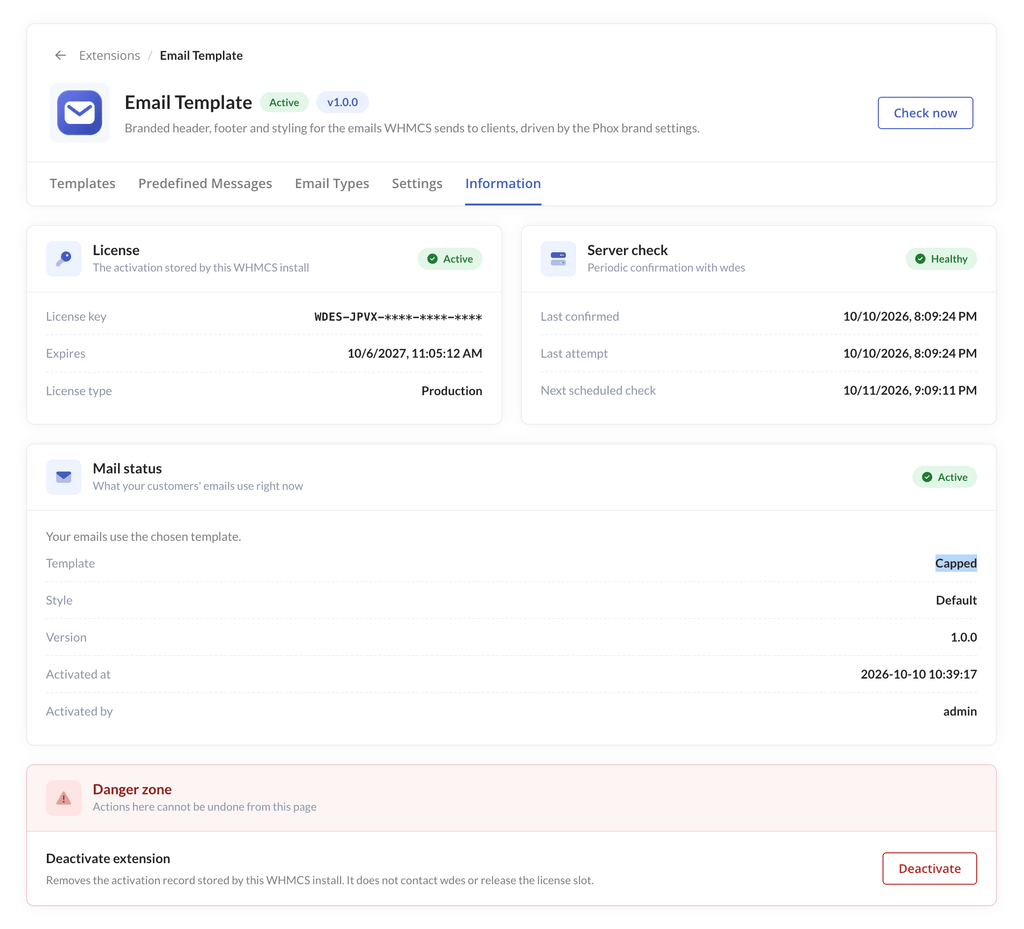
- To check which template your emails use right now, open Information > Mail status.