
 Last Update: October 10, 2026

Steps to Deactivate
- Log in to the WHMCS admin area.
- Go to Addons > Phox WHMCS Templates.
- Open the Extensions tab.
- Find Email Template and click Manage.
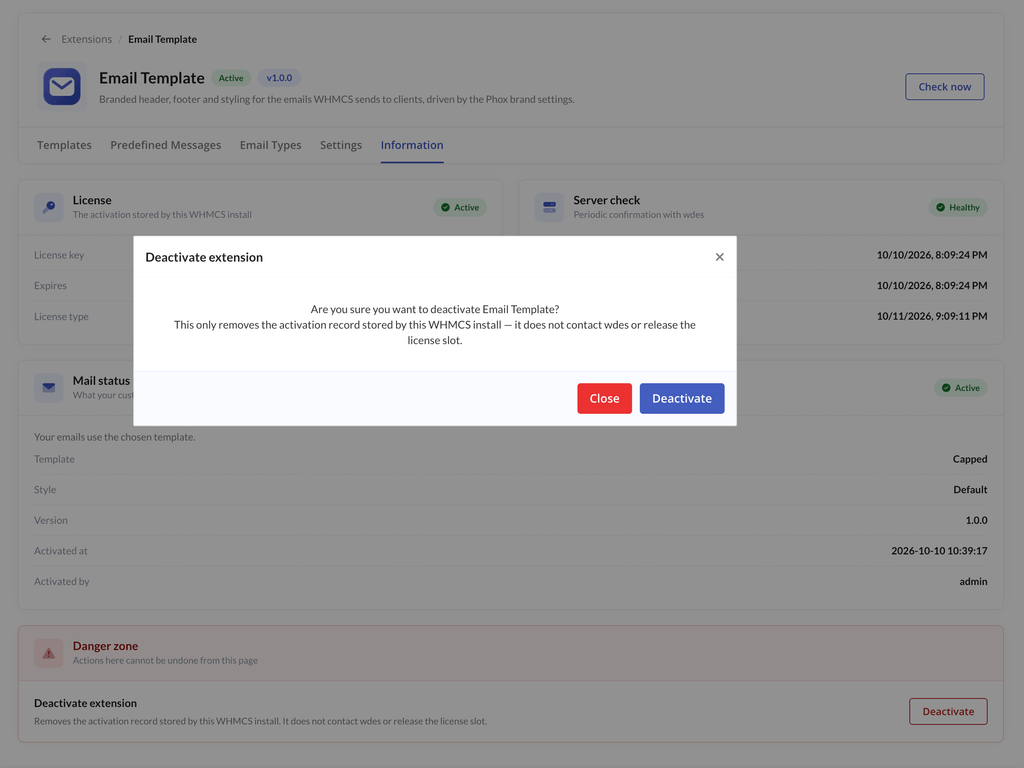
- Open the Information tab.
- Scroll to Danger zone and click Deactivate.
What Happens to Your Emails
Deactivating removes the Phox template from your emails, and WHMCS sends them with its own email design again.
Predefined messages you applied stay in your WHMCS email templates. Restore the previous messages from the Predefined Messages tab before deactivating if you want the original text back.
Your template choice and settings are kept, and reactivating the extension restores them.
License
Deactivating removes the activation stored by this WHMCS installation. It does not release the license for the linked domain. To use the extension on a different domain, log in to the client portal, open the product under Subscriptions and reset the license there.